
 This is a guest post written by SathiyaMoorthy.
This article is part of the ongoing Vi / Vim Tips and Tricks Series. As a programmer, you may do lot of repetitive tasks while coding such as:
- Adding file header
- Adding function/frame comment
- Including default code snippet
- Performing syntax check
- Reading documentation about a function
- Converting a code block to comment, and vice versa
The Perl-Support Vim Plugin – Perl-IDE offers easiest way to do all of the above, saving lot of time and keystrokes.
The plugin was written by Fritz Mehner, who explains the purpose of the plugin as: “Write and run Perl-scripts using menus and hot keys”.
This article explains how to install the plugin in 3 easy steps and 7 powerful features of the plugin.
3 Steps to Install the Perl-Support Vim Plugin
Step 1: Download Perl-Support Vim Plugin
Download the plugin from vim.org website.
$ cd /usr/src
$ wget http://www.vim.org/scripts/download_script.php?src_id=9701
Step 2: Install the Perl-Support Vim Plugin
$ mkdir ~/.vim
$ cd ~/.vim
$ unzip /usr/src/perl-support.zip
Step 3: Enable the plugin in the ~/.vimrc
Add the following line to the ~/.vimrc to enable the plugin for Vim editor.
$ vim ~/.vimrc
filetype plugin on
7 Powerful Features of Perl-Support Vim Plugin
Feature 1: Add Automatic Header to *.pl file
When you open a file with the extension .pl it opens the file with header as shown below. This will also place the cursor in the Description field in Insert mode.
$ vim myprogram.pl
#!/usr/bin/perl
#===================================================
#
#         FILE:  myprogram.pl
#
#        USAGE:  ./myprogram.pl
#
#  DESCRIPTION:
#
#      OPTIONS:  ---
# REQUIREMENTS:  ---
#         BUGS:  ---
#        NOTES:  ---
#       AUTHOR:  Dr. Fritz Mehner (mn), mehner@fh-swf.de
#      COMPANY:  FH Südwestfalen, Iserlohn
#      VERSION:  1.0
#      CREATED:  12/23/2008 03:47:07 PM
#     REVISION:  ---
#===================================================

use strict;
use warnings;
To change the default value of the AUTHOR and COMPANY, modify the default value in ~/.vim/perl-support/templates/Templates
$ vim ~/.vim/perl-support/templates/Templates
|AUTHOR|    = SathiyaMoorthy
|AUTHORREF| = sm
|EMAIL|     = test@test.com
|COMPANY|   = mycompany
Now, when you create a new perl file, it will show the modified values for AUTHOR and COMPANY as shown below.
$ vim myprogram.pl
#!/usr/bin/perl
#===================================================
#
#         FILE:  myprogram.pl
#
#        USAGE:  ./myprogram.pl
#
#  DESCRIPTION:
#
#      OPTIONS:  ---
# REQUIREMENTS:  ---
#         BUGS:  ---
#        NOTES:  ---
#       AUTHOR:  SathiyaMoorthy (sm), test@test.com
#      COMPANY:  mycompany
#      VERSION:  1.0
#      CREATED:  12/23/2008 04:09:23 PM
#     REVISION:  ---
#===================================================

use strict;
use warnings;
Note: To add custom fields to the header, modify the ~/.vim/perl-support/templates/file-description.template file and add your own custom field.
Feature 2: Adding Perl Subroutine using \isu
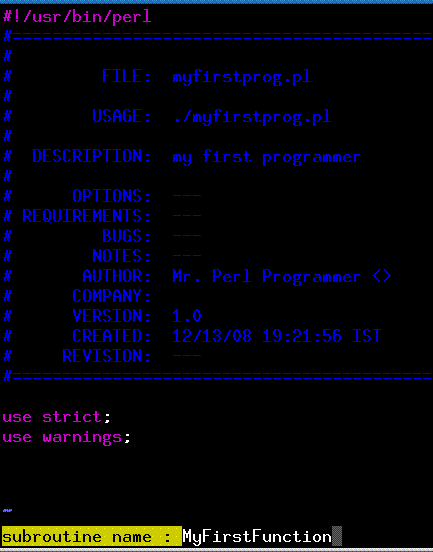
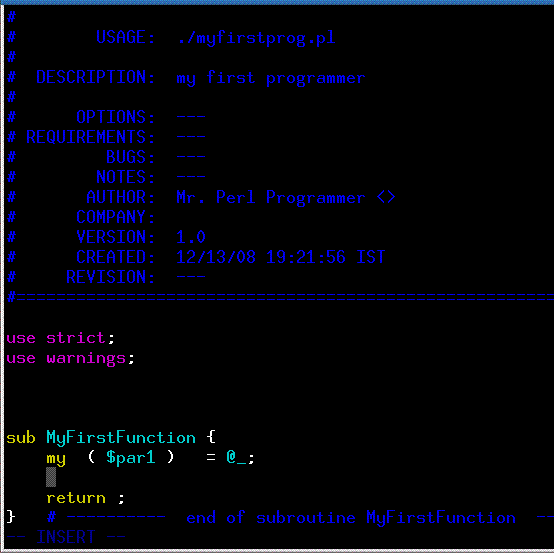
For writing a subroutine, type \isu in normal mode, which will prompt for the subroutine name (as shown in Fig1 below) and inserts the subroutine with default function content (as shown in Fig2 below).
Feature 3: Insert a Function Header using \cfu
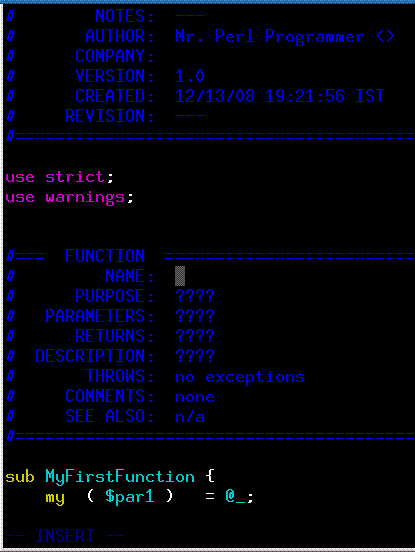
For inserting a function header, type \cfu in normal mode, which will add the comment as shown below.
Feature 4: Add a Frame comment using \cfr
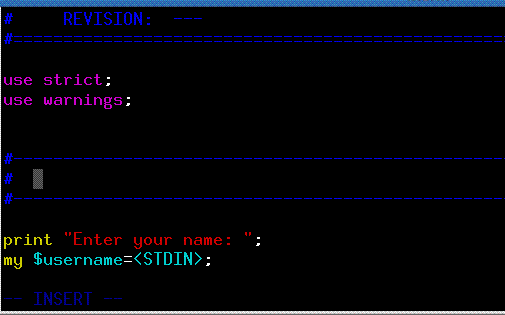
To add a frame comment, type \cfr in normal mode, which will give the following formatted comment.
Feature 5: Save the file and execute it immediately using \rr
Type \rr in the normal mode, which will save the file and execute it immediately.
Feature 6: Comment a block of code using \cc
To change a entire code block to comment, select the code in visual mode and type \cc.
Feature 7: Insert pre-defined code-snippet to the Perl code using \nr
The plugin comes with few pre-defined code snippets that you can insert into your code. Following are the default code snippets that comes with the plugin.
$ ls ~/.vim/perl-support/codesnippets/
dot.SmallProf                print-data-structure-with-Dumper.pl
free-software-comment        print-hash.pl
inside-out-class.pl          print-hash-sorted.pl
module-interface.pl          process-all-files-in-a-directory-recursively.pl
new.pl                       slurp-file.pl
pod-template-application.pl  SmallProf-variables.pl
pod-template-module.pl
For example, if you want to create a function that will print the hash values, you can re-use it from the existing code snippets. Following is the content of the print-hash.pl pre-defined code snippets.
$ cat ~/.vim/perl-support/codesnippets/print-hash.pl

#----------------------------------------------------------------------
#  subroutine : print_hash
#----------------------------------------------------------------------
sub print_hash {
  my  $hashref  = shift;      # 1. parameter : hash reference
  print "\n";
  while ( my ( $key, $value ) = each %$hashref ) {
    print "'$key'\t=>\t'$value'\n";
  }       # -----  end while  -----
} # ----------  end of subroutine print_hash_sorted  ----------
To insert this into your working perl program, type \nr from the normal mode inside vim, which will prompt “read snippet /home/rnatarajan/.vim/perl-support/codesnippets/”, type print-hash.pl at the end and press enter, which will insert the content of the ~/.vim/perl-support/codesnippets/print-hash.pl to your working file automatically.
Note: You can define your own code snippets and place it under ~/.vim/perl-support/codesnippets/. You can also build your own code snippets from the existing code – select the part of code need to be made as code snippet, press \nw, and give a file-name to it. From next time, type \nr and the file-name to get your custom code snippet.
There are lot of powerful features in the PerlSupport Vim Plugin. Read the documentation for more information. The documentation is located in the following location on your system.
- README : ~/.vim/README.perlsupport
- PDF : ~/.vim/perl-support/doc/perl-hot-keys.pdf
- Online perl-support vim plugin documentation
Recommended Reading
 Vim 101 Hacks, by Ramesh Natarajan. I’m a command-line junkie. So, naturally I’m a huge fan of Vi and Vim editors. Several years back, when I wrote lot of C code on Linux, I used to read all available Vim editor tips and tricks. Based on my Vim editor experience, I’ve written Vim 101 Hacks eBook that contains 101 practical examples on various advanced Vim features that will make you fast and productive in the Vim editor. Even if you’ve been using Vi and Vim Editors for several years and have not read this book, please do yourself a favor and read this book. You’ll be amazed with the capabilities of Vim editor.



Comments on this entry are closed.
it’s very goooood plugin for using VIM of perler,
I don’t know write the VIM plugin ,
Can you write a tutorial for wirte plugin of Vim.
thx.
Yeah! That’s great, but the fact of put the line “filetype plugin on” in my vimrc has strange behaviour. Indeed, my vimrc is don’t read anymore, (and all my other option to). How can I made for have the plugin in add of my actual vimrc setting ? Thanks.
Hi, the \rr functionality doesn’t work for me.
It just says E10: \ should be followed by / . ? or &
Actually the \cc doesn’t work either.
The auto insert header is working but it seems nothing else is.
Nevermind, I fixed it!
It’s fairly obvious, but step 2 will fail since the file downloaded via wget will be called
download_script.php?src_id=9701
, and not perl-support.zip.
Just thought I’d put that out there.
Hi ,
If i want to update the time or version info automatically with a key press how to do it ?
Can’t get any of the command “\isu” to work in cygwin64/vim environment, “i” puts the editor into “insert” mode and it doesn’t take the while thing as a command like I had expected.
I might sound like a goof… but why cant I get any of these vim functions to execute? Im trying to insert a subroutine (\isu), but I guess im not sure what to type…
:execute “normal! \isu”
:execute “normal! \isu”
>.< What am I doing wrong
I follow these install steps perfectly, and when I create a new .pl file via vim, it does add the header… But none of the mappings are created. I tried ‘:normal \isu’, and nothing happened. And ‘:map \isu’ says No Mapping Found.. Was there a step that got left out?