

Using Vim Macro feature you can record and play a sequence of actions inside the editor.
This article explains how to perform record and play inside Vi and Vim editor using two detailed examples.
High Level Steps to Record and Play inside Vim
- Start recording by pressing q, followed by a lower case character to name the macro
- Perform any typical editing, actions inside Vim editor, which will be recorded
- Stop recording by pressing q
- Play the recorded macro by pressing @ followed by the macro name
- To repeat macros multiple times, press : NN @ macro name. NN is a number
Example 1: Sequence number generation inside a file using Vim Macro
1. Start a sequence-test.txt file to generate the sequence.
$ vim sequence-test.txt
2. Go to insert mode and type “1 .” as shown below
Type: Esc i followed by 1.
$ vim sequence-test.txt
1.
3. Start the Recording and store it in register a.
Type: Esc q followed by a
- q indicates to start the recording
- a indicates to store the recordings in register a
- When you do q a, it will display “recording” at the bottom of the vi.
4. Copy the 1st line to 2nd line to have two lines with 1 . as shown below
Type: Esc yy followed by p
- yy will copy the current line
- p will paste the line that was just copied
$ vim sequence-test.txt
1.
1.
Note: Vim will still show recording at the bottom as shown below.
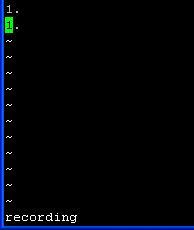
Fig: Vim showing recording message at the bottom
5. Increment the number.
Type: Control a
By placing the cursor at the 2nd line, press Ctrl+a which increment the number to 2. as shown below.
$ vim sequence-test.txt
1.
2.
Note: vim will still show recording at the bottom.
6. Stop the recording
Type: q
Press q to stop the recording. You’ll notice that recording message at the bottom of the vim is now gone.
7. Repeat the recording 98 times.
Type: 98@a
- Now repeat this job, by typing 98 @ a
- @a repeats the macro “a” one time.
- 98@a repeats the macros “a” 98 times generating the sequence number 1 – 100 as shown below using macros.
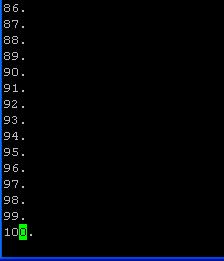
Fig: Generate Sequence Number in Vim using Macro
Example 2: Repeat Vim Macro with different arguments
This example explains how you can executing the same command, with different input for it. i.e Framing the same command, with different arguments.
Before Executing the Macro: change-password.sql
$ vim change-password.sql
Annette
Warren
Anthony
Preston
Kelly
Taylor
Stiller
Dennis
Schwartz
After Recording and executing the Macro: change-password.sql
$ vim change-password.sql
ALTER USER Annette IDENTIFIED BY 'Annette';
ALTER USER Warren IDENTIFIED BY 'Warren';
ALTER USER Anthony IDENTIFIED BY 'Anthony ';
ALTER USER Preston IDENTIFIED BY 'Preston';
ALTER USER Kelly IDENTIFIED BY 'Kelly ';
ALTER USER Taylor IDENTIFIED BY 'Taylor';
ALTER USER Stiller IDENTIFIED BY 'Stiller';
ALTER USER Dennis IDENTIFIED BY 'Dennis';
ALTER USER Schwart IDENTIFIED BY 'Schwart';
1. Open the change-password.sql that has only the names.
$ vim change-password.sql
Annette
Warren
Anthony
Preston
Kelly
Taylor
Stiller
Dennis
Schwartz
2. Start the Recording and store it in register a
Type: q a
- q indicates to start the recording
- a indicates to store the recordings in register a
- When you do q a, it will display the message recording at the bottom of the vi.
3. Go to Insert Mode and Type ALTER USER
Type: I (Upper case i) followed by “ALTER USER ”
Place the cursor anywhere in the first line, and then press I. Which will take you to the first character of the line. Type ALTER USER
4. Copy the Next Word (i.e the name)
Type: Esc w yw
- Press Esc, and then press w to go to the next word ( name ).
- yw, copies the current word ( name ).
5.Go to the end and type IDENTIFIED BY ‘
Type: Esc A followed by ” IDENTIFIED BY ‘”
- Press Esc, and A to move the cursor to the end of the line, and then type space.
- Type IDENTIFIED BY ‘
6. Paste the copied Name
Type: Esc p
Press Esc, and then type p to paste the name that was copied in the step #4.
7. Complete the quote at the end.
Type: Esc A followed by ‘;
Press Esc, and A to go to the end of the line, and ‘;
8. Jump to the next line and stop the record.
Type: Esc j followed by q
- j to move to the next line.
- q to stop the recording
Note: The recording message shown in the bottom of the vi will now disappear. At this stage, the change-password.sql will look like the following.
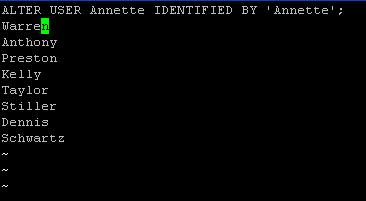
Fig: Vim Macro completed the recording
9. Repete the Macro with the arguments in the corresponding line
Type: 8 @ a
- Now repeat this job 8 times by typing 8@a
- @a repeats the macro “a” one time.
- 8@a repeats the macros “a” 8 times completing the rest of the line automatically as shown below
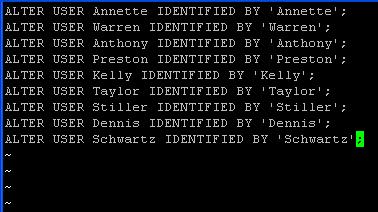
Fig: Vim Macro Play completed
Recommended Reading
 Vim 101 Hacks, by Ramesh Natarajan. I’m a command-line junkie. So, naturally I’m a huge fan of Vi and Vim editors. Several years back, when I wrote lot of C code on Linux, I used to read all available Vim editor tips and tricks. Based on my Vim editor experience, I’ve written Vim 101 Hacks eBook that contains 101 practical examples on various advanced Vim features that will make you fast and productive in the Vim editor. Even if you’ve been using Vi and Vim Editors for several years and have not read this book, please do yourself a favor and read this book. You’ll be amazed with the capabilities of Vim editor.
Awesome Vim Editor Articles
Following are few awesome Vi / Vim editor tutorials that you might find helpful.
- Turbocharge Firefox Browser With Vim Editor Functionality Using Vimperator Add-on
- Tutorial: Make Vim as Your C/C++ IDE Using c.vim Plugin
- Convert Vim Editor to Beautiful Source Code Browser for Any Programming Language
- 12 Powerful Find and Replace Examples for Vim Editor
Note: Please subscribe to The Geek Stuff and don’t miss any future Vi and Vim editor tips and tricks.



 My name is Ramesh Natarajan. I will be posting instruction guides, how-to, troubleshooting tips and tricks on Linux, database, hardware, security and web. My focus is to write articles that will either teach you or help you resolve a problem. Read more about
Comments on this entry are closed.
Hi, thanks for grate post.
If you have time . write about registers in vim – very interesting and problematic theme. Thanks a lot!
Yay thanks for these tips.
great article, thanks for the tips
(Note: this is a follow-up to a thread I started on Linux Today about this article)
While I find this to be a very good introduction to macros in Vim, I must point out that vi does not have macro facilities. I realize that 99% of Linux distros soft-link vi to Vim, but that doesn’t make Vim and vi the same.
There are a lot of us out there that use the “real” vi in our day jobs (my team, for one), and while the majority of us know the limitations of vi, there are some out there that don’t. They read articles like this, hoping to learn more about the main editor on their platform, only to discover that this doesn’t apply to them.
My suggestion to the author(s) of this series is to verify what works in vi and what works *only* in Vim, and change the headline and article accordingly. IE: the title of this article should have been: “Vim Macro Tutorial: How to Record and Play”.
If you don’t know what vi is capable of, please install the “nvi” package. On Debian-based systems, this is as easy as running “apt-get install nvi” as root, or “sudo apt-get install nvi” if you use sudo. You can then experiment with it by running “nvi” at the console prompt.
Thanks for pointing it out.
I thought everybody is using vim, so mentioning vi / vim would be the same. But realized that vi is still used, by reading your comment.
I will take care hence forth.
But i believe, upgrading yourself to vim is a better option.
SathiyaMoorthy, I do not have the option of updating vi to Vim. I work for a very large U.S. corporation that has literally hundreds of Sun Solaris servers. The servers ship with vi as the standard editor, and Vim isn’t even on the allowed software list. I can not upgrade them. While I pretty much know vi inside and out, several members of my team do not, and are constantly looking around the Internet for tutorials to help them. This is why I posted my first comment.
I am very conversant with Vim, having used it extensively for over 10 years. I love Vim, and use it on my personal development server (mainly for writing shell and Perl scripts, but I also maintain some C programs on that box), not to mention on all my Unix and Linux (and Windows!) machines at home. Believe me, if I could upgrade these boxes from vi to Vim, I would.
This is great tip, I have used vim for years and this is a favorite when doing refactoring in code
How do I save it (the macro)?
This is nice Tutorial written by u .
I would like to thanks to u .
I want some etails of vim if u have time
{CM Norton}, yes, you can save a macro. It’s just a text string.
Say you record a macro into register a then you can paste the recorded sequence used by pasting register a ( “ap ). The pasted output helps you to see the actual macro sequence recorded. It’s also handy if you’ve recorded a long macro and made a mistake as you can just past the sequence, correct the pasted sequence, and yank it back into the register you used ( “aY or “ayy ).
In your vimrc file, you can set a register with your macro.
Sweet and to the point, thanks!
Hello,
This is very nice article.
Thank you for that.
This will certainly become very useful with some practice!!
Wow this article is great and Wonderful. . .
These geekstuff of the every Tips is Wonderful and to perform the shortcut way on the OS….
Howard makes the comment above that vanilla vi doesn’t support macros and that’s just not true. vi does support macros, it doesn’t support the recording of macros using the q key.
In vi, create a line that says this. The ^[ is a literal escape character and you’ll most likely have to type ctrl-v then hit the Exc key.
o#^[71a-^[j0
Make sure your cursor is on that line and type:
“udd
You’ve just deleted the line and stored it in buffer u as a macro. You can play it back at any time in normal mode by typing:
@u
Ahem… that’s the Esc key, not the Exc key.
Hi ramesh,
really a powerful method, i wondered if we have some option to save these macro’s.
Thanks! I stumbled onto q, but didn’t know how to use it.
98@a E16:invalid range error displayed linux vi editor
Hi SathiyaMoorthy,
Thanks for recod and play steps. It was amazing to learn this useful tip just by following the steps written by you. Appreciate your effort and time put on for this.
I find your examples real confusing. You put “esc” before stuff. The “esc” is used to exit from input or replacement mode back into command mode. vi/vim/gvim are in command mode unless you put into “input mode” (commands: a,A,i,I,o,O) or “replacement mode” (commands: c,s,R).
You start off with an “esc” but you are in “command mode” already and you should be using the “esc” to leave input mode.
thanks a lot for these tips
@SaathiaMoorthy well i would first like to thank you for such a nice tutorial. How ever , the issue i’m facing with macros is that while recording the macro , if i ‘yank’ a line and ‘paste’ it at another place, it is done successfully. However , when i play the macro , the same line is of course ‘yanked’ but is never pasted anywhere . Also the macro stops at first run only and shows ‘NN lines yaked’ at the bottom. I’m using an old fedora(uname -a says it is Redhat 4). It wild be nice if you could track out this issue.
Neat explanation. Thumbs Up!
sarav,
Where are you pasting the line
->same file
->differnt file
->are u using “:e filename” to open the file
i have a tip for you, when you want to copy multiple things from differnt place and need to paste at multiple locations, then use “ay or “ap (here the copied thing is saved in register a, similarly you can copy in differnt registers and use it later by refering the name”). I hope the tip is helful.
Rakesh UV
98@a E16:invalid range error displayed linux vi editor
Thanks for the useful tip. I would add one tip, and that is to use the following command, if you aren’t sure what register you used to store the macro:
:reg
thanks!
I realize you are just teaching a demo on macros, but instead of writing a macro to change the change-password.sql file, I’d write something like this.
:g/^.*.$/s//ALTER USER & IDENTIFIED BY ‘&’;/
Sometime in the last few days, macro recall has quit. For example :new to create a
window and “ap is display macro a within that window. Or “mp to display macro m.
“ap does not do anything. :reg displays all registers, so I know they are still there.
What have I done to disable “ap?
Thank you very much!
Cjharles
Sathiyamoorthy,
Just wanted to say thank you for this amazing article. It saves manual labor that i do so many times.
thanks,nice method…
thanks a lot
Your website is so Awesome- I am always amazed that any topic relating Linux and Network you have a very helpful article. Keep up the Outstanding Job
Thanks so much for this post! Not only did I learn about recording macros, I learned about the ctrl+a increment command! Vim never ceases to blow me away.
if the macro fails the whole recording fails, this is one big drawback
for example if the macro find a pattern “b” in a line and replace it with “d” and goes to the next line.Here if we run the macro 10 times, it will stop in the third line itself.
Do anybody have a solution for such kind of scenario where macro fails to meet the condition.
a b c
a b c
a a a
a b c
a b c
a b c
a b c
Thanks a lot for great tutorial. This helped me a lot. I also found couple of other useful articles on your blog.
Thank you very much man! it was very helpful.
Thanks a lot. This helped me a lot.
Thank you, really useful.
Hi, a clear example is always welcome 🙂
Q: Is there a way to add bullet numbering to a preexisting text; ie make it a list in a snap?
I tried using column selection (CTRL V) but i was stopped when i tried to increment the selection that I just pasted :/
I ran across this page while looking for a way to include commands for one specific file. I use nvi, and I have a data file I use as a TODO list, and whenever I edit it, I always set the same two commands:
:set ignorecase
:map = kmwj:.m$^M’w
I’m hoping to find a way to automatically define these two whenever I open the file in nvi.
The suggestion to “upgrade” to vim is problematic, because vim lacks a lot of vi’s functionality that I depend on. I’ve been using vi since 1983, and when I use vim, I inevitably run into problems where I’m doing an edit and the commands to do it simply don’t exist.
When that happens, the path of least resistance has always been to install nvi and ditch vim, so I never can remember what missing functionality I had encountered. It usually only happens shortly after I begin using a newly installed system.